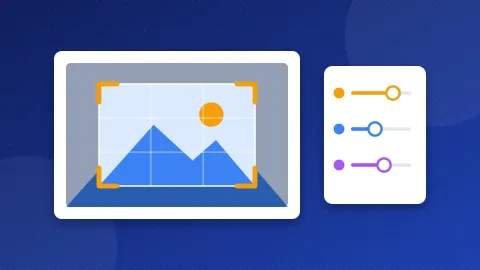
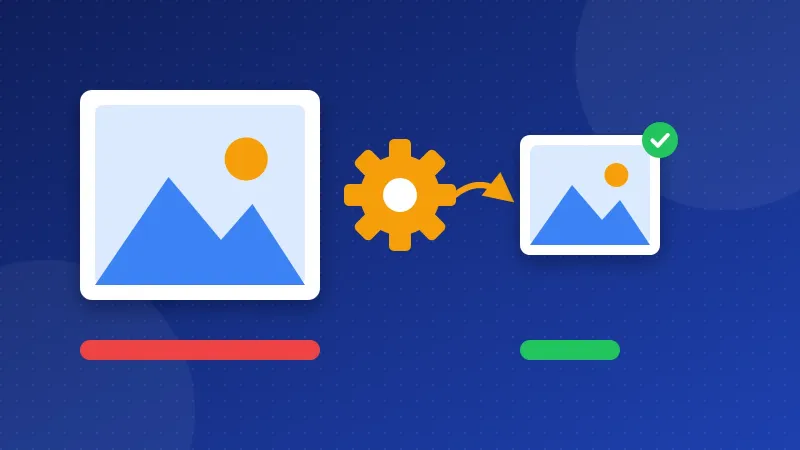
This image to WebP converter turns JPG, PNG and other images into WebP files in your browser. Smaller images load faster, and fast pages keep visitors and help your Core Web Vitals.
How to convert images to WebP
- Click the box or drop one or more images on it.
- Move the quality slider. 80 is a good start for photos.
- Optional: set a maximum width, for example 1600 px for a featured image.
- Click Download next to each file.
What quality should you choose?
For photos, a quality between 75 and 85 usually looks the same as the original while the file gets much smaller. For screenshots with text, try 85 to 95 so letters stay sharp. Compare the result before you replace the original on your site.
Does WebP work in every browser?
All current major browsers show WebP images. Saving (creating) WebP files in the browser also works in current Chrome, Edge, Firefox and Safari. If your browser cannot create WebP, the tool tells you.
Your images stay private
The converter uses your browser's own canvas feature. The files never go to our server, so you can safely convert private or unpublished images. Use the image to WebP converter as often as you like.
Frequently asked questions
Is WebP better than JPG?
For most website images, yes. WebP usually gives a smaller file at the same quality, and it also supports transparency like PNG.
Are my images uploaded?
No. Everything happens in your browser, and closing the page removes the converted files from memory.
Why is my WebP file bigger than the original?
This can happen with images that were already heavily compressed. Lower the quality or keep the original file.