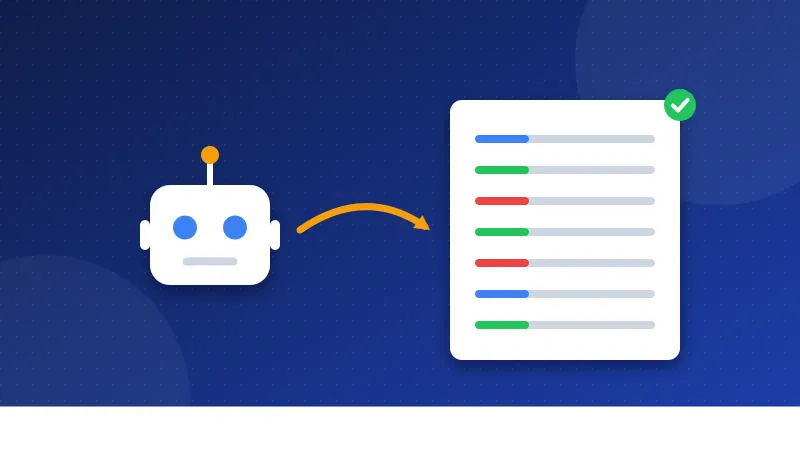
This is robots.txt for beginners in short: robots.txt is a small text file at the root of your site that tells crawlers which pages they may visit. It controls crawling, not indexing. It does not hide a page from Google, so use a noindex tag or a password for that.
A crawler, also called a bot or spider, is a program that visits web pages to read them. Search engines and AI companies both run crawlers. Below you will learn what the file does, how to write one, how to deal with AI bots and which mistakes to avoid.
What does robots.txt do?
The file sits at the root of your domain, for example https://example.com/robots.txt. It must use exactly that name, and each host can have only one. When a polite crawler arrives, it reads this file first and follows the rules it finds.
Google explains that the main job of robots.txt is to manage crawler traffic so bots do not overload your server. It is useful for keeping crawlers away from things like admin areas, search result pages on your own site or endless filter URLs.
What robots.txt does not do
This is the part most beginners get wrong. Robots.txt is not a "hide this page" switch.
- It does not remove pages from Google. Google says a blocked page can still be indexed if other sites link to it. It may show up in results with no description.
- It does not replace noindex. A noindex tag asks search engines to keep a page out of results. For it to work, Google must be able to crawl the page and read the tag. If robots.txt blocks the page, Google never sees the noindex.
- It is not security. Anyone can open your robots.txt and read it. Bad bots can simply ignore it. Never list secret folders there.
Robots.txt for beginners: the four lines you need
A robots.txt file is made of groups of rules. You only need four kinds of lines:
- User-agent names the crawler the rules apply to. A star (
*) means all crawlers. - Disallow lists a path the crawler should not visit.
- Allow lists a path it may visit, even inside a blocked folder.
- Sitemap gives the full address of your sitemap, a file that lists the pages you want found.
Here is a tiny example:
User-agent: *
Disallow: /admin/
Allow: /admin/help.php
Sitemap: https://example.com/sitemap.xml
In plain words: all crawlers should stay out of the /admin/ folder, except the help page. The sitemap is at the address on the last line. Anything you do not block is allowed by default.
Rules to keep in mind
- Paths are case-sensitive, so
/Photos/and/photos/are different. - Save the file as plain UTF-8 text, not as a Word document.
- Google reads up to 500 KiB of the file and ignores anything after that. A normal file is far smaller.
- Google usually keeps a copy for up to 24 hours, so changes may take a day to show.
These rules come from Google's guide to writing robots.txt and its page on how Google reads the file.
How do you handle AI crawlers?
Many AI companies now run their own bots. You can block or allow them in robots.txt by name, just like search bots. Here are some you may see, with names checked on the owners' own pages:
| User agent | Owner | What it is for |
|---|---|---|
| GPTBot | OpenAI | Collects content to train OpenAI's AI models |
| OAI-SearchBot | OpenAI | Finds pages to show in ChatGPT search |
| Google-Extended | Controls use of your content for Gemini training and grounding |
A few details matter. Google says blocking Google-Extended does not change how your site appears or ranks in Google Search. OpenAI says each of its bots works on its own. So you could block GPTBot from training but still allow OAI-SearchBot, so your site can show up in ChatGPT search.
To block only GPTBot, add a group like this:
User-agent: GPTBot
Disallow: /
Think before you block. Blocking a search-type AI bot may also stop your pages from showing up as sources in that tool.
How do you make and test the file?
- Write it. Use a plain text editor, or build it with our free robots.txt generator.
- Upload it to the top folder of your site, the same place as your home page.
- Open it in a browser at
yourdomain.com/robots.txtto make sure it loads. - Check Search Console. The robots.txt report shows the version Google fetched and any errors.
- Inspect a key page with the URL Inspection tool to confirm Google can still crawl it.
Common robots.txt mistakes
- Blocking the whole site by accident.
Disallow: /underUser-agent: *blocks every page. Some sites keep this line after launch from a test setup. - Using robots.txt to hide a page. Use noindex or a password instead.
- Blocking a page and adding noindex. Google cannot see the noindex if it cannot crawl the page.
- Blocking CSS and JavaScript files. Google needs them to see your page the way visitors do.
- Typos in paths. One missing slash or wrong letter case can block the wrong folder.
- Putting the file in a subfolder. Crawlers only look at the root.
If a page will not show up in Google, a robots.txt block is one of the first things to check. Our guide on how to check if a page is indexed walks you through it.
That is robots.txt for beginners: a short file that guides polite crawlers, not a lock and not a delete button. Keep it simple, block only what you must, add your sitemap line, and test every change in Search Console.
Frequently asked questions
Does every website need a robots.txt file?
No. If there is no file, crawlers assume they may visit everything. A small file with your sitemap line is still a good idea, and it lets you block areas you do not want crawled.
Can robots.txt remove a page that is already in Google?
No. Blocking the page may even keep it in the index, because Google can no longer see changes. Add a noindex tag and keep the page crawlable until it drops out.
Will blocking GPTBot hurt my Google rankings?
No. GPTBot belongs to OpenAI, and Google Search does not use it. Even Google's own AI token, Google-Extended, does not affect Google Search ranking, according to Google.