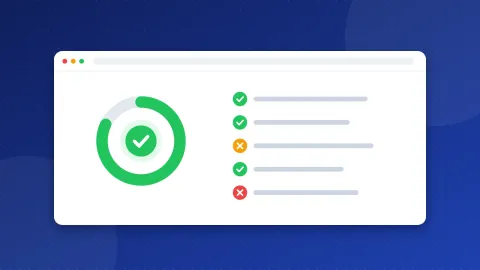
An unused CSS checker compares your stylesheets with the HTML of a page and shows which rules match nothing on it. This tool checks that and minifies your CSS too. Enter a URL to scan every stylesheet on a page, or paste CSS to shrink it right away. Then download smaller files that leave out comments, extra spaces and rules the page never uses.
Why smaller CSS makes pages feel faster
A browser cannot show your page until it has downloaded and read your CSS. Every stylesheet in the head of the page blocks the first paint. A bigger file takes longer to download, and the browser then checks every element on the page against more rules.
Two kinds of waste make CSS bigger than it needs to be:
- Extra characters. Comments, line breaks, spaces and long color codes help people read the file, but browsers do not need them.
- Unused rules. Themes and plugins ship styles for sliders, shops, pop-ups and page types you may never use. Every page still downloads them.
Google's Lighthouse report flags both problems. "Minify CSS" lists files with extra characters, and "Reduce unused CSS" lists stylesheets that could save 2 KiB or more. This tool helps you fix both from one screen.
I learned this the hard way. For years I believed speed was the golden rule of SEO, so I hunted for lightweight WordPress themes and later wrote my own templates in plain HTML, PHP and CSS. A fast theme helped only a little. What adds up is the CSS that every page loads but few pages need. Bloghints is a good example: its main stylesheet is about 87 KB after minifying, and roughly half of it styles only a few page types.
What the minify options do
Every option has a checkbox, so you can turn off anything you do not want. Untick "Remove whitespace" to get neatly formatted CSS instead of one long line.
| Option | Before | After |
|---|---|---|
| Remove comments | /* Header */ | (removed) |
| Remove whitespace | a { color: red; } | a{color:red} |
| Shorten colors | #ff0000, rgb(255, 0, 0) | #f00 |
| Combine duplicates | .a{color:red}.b{color:red} | .a,.b{color:red} |
The tool combines only rules that sit next to each other. Moving a rule from the bottom of a file to the top can change which style wins, so the tool leaves those alone. It also skips selectors made for one browser, such as ::-moz-selection, because one selector the browser does not know breaks the whole list.
How the unused CSS checker works
When you enter a URL, the tool downloads the page HTML and finds every stylesheet link and every inline style block. It then loads each CSS file and tests each selector against the page. A rule gets one of four labels:
- Used: at least one element on the page matches it.
- Unused: nothing on the page matches it.
- Partly used: the rule has a list of selectors and only some of them match. The tool keeps the rule and drops only the selectors that match nothing.
- Kept: the tool could not test it, or you added it to the safelist.
States like :hover and :focus and extras like ::before cannot be tested on a page that nobody is using. The tool strips them before it tests, so a:hover counts as used when the page has links. Animations and web fonts are always kept.
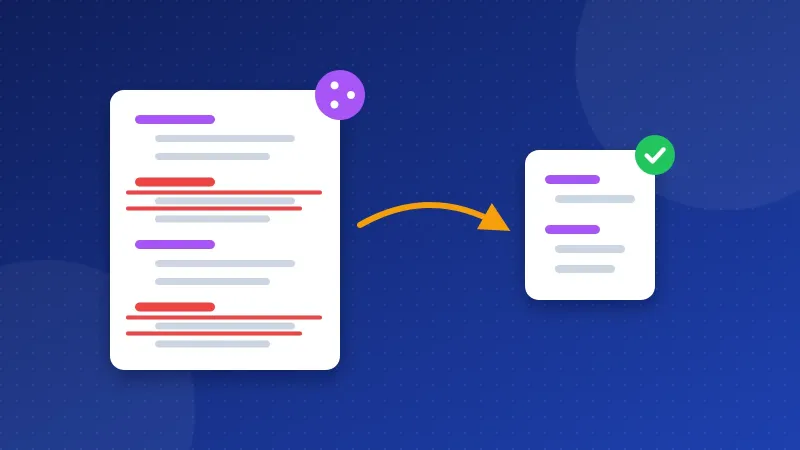
Click any rule in the list to jump to its line in the before and after view. Removed lines show in red, and lines where only some selectors were dropped show in amber.
Check before you delete anything
An unused CSS checker sees one page at a time, so treat "Unused" as "not on this page". Three things often look unused but still matter:
- Classes that JavaScript adds later. Menus that open, sliders, cookie bars and pop-ups get their classes after the page loads. The downloaded HTML does not have them yet.
- Other page types. Your home page may not use the styles for comments, archives or your contact form.
- States the visitor creates. Error messages, "thank you" boxes and logged-in views only appear after someone acts.
Add those selectors to the safelist under Advanced, one per line. Plain text such as .is-open keeps every selector that contains it, and a pattern such as /^\.js-/ keeps a whole group. Then run the check on your main templates: home page, one article, one category page and your contact page. Keep only the rules that are unused on all of them.
How to use the files you download
- Back up your current CSS through your hosting file manager or FTP.
- Pick a download. "Minify & download" gives one file. "Download all" gives a .zip with one minified file per stylesheet. "Download merged" joins everything into one file and wraps print-only styles in
@media print. - Upload the new file and point your theme or template to it. On WordPress, a caching or optimization plugin may already minify CSS, so do not minify the same file twice.
- Test on a phone and a computer. Open the menu, submit a form and check a few page types.
- Run Lighthouse again in Chrome to see the new numbers.
Chrome DevTools has a Coverage tab that shows used and unused bytes while you click around a page. It is a good second opinion for pages that change a lot when people use them.
About privacy and the proxy
Minifying and analysis run in your browser. Bloghints has no database for this tool and does not store your CSS. Browsers do not let one site read another site's files directly, so URL mode first asks the Bloghints server to fetch the page. It passes the file straight back to your browser and stores nothing. If that fails, the tool tries free public proxies (allorigins.win, codetabs.com, corsproxy.io), which can see the address you enter. Some sites block proxies; if a page fails to load, open the CSS file in your browser, copy it and use the Direct Paste Code tab.
Start with the minify options, since they are safe on any file. Then use the unused CSS checker on your busiest templates and remove rules only after you test them. Small files load faster, and your visitors see your pages sooner. For more speed work, convert heavy images with our image to WebP converter and check how your pages look in search with the SERP snippet preview.
Frequently asked questions
Is it safe to remove unused CSS?
Minifying is safe because it keeps every rule. Removing unused rules is safe only after you check every page type and the classes that JavaScript adds. Add those to the safelist, test your site, and keep a backup of the original file.
How much smaller will my CSS get?
Minifying alone often saves 15 to 30 percent of a hand-written file, and more when it has many comments. Removing unused rules can save much more on theme or framework CSS. The stats boxes show your real numbers, including the gzip size visitors actually download.
Why does a site fail to load in URL mode?
Some sites block proxies or show a security check instead of the page. The proxy may also refuse requests when it is busy. Open the page in your browser, copy the CSS file, and paste it in the Direct Paste Code tab instead.