This tool writes your .htaccess gzip and caching code in one step: compression makes text files smaller on the way to the visitor, and browser caching lets returning visitors reuse files they already have. Pick the file types and cache times, then copy the code for Apache, LiteSpeed or Nginx. A header checker below the code tells you if it worked.
What do gzip and browser caching do?
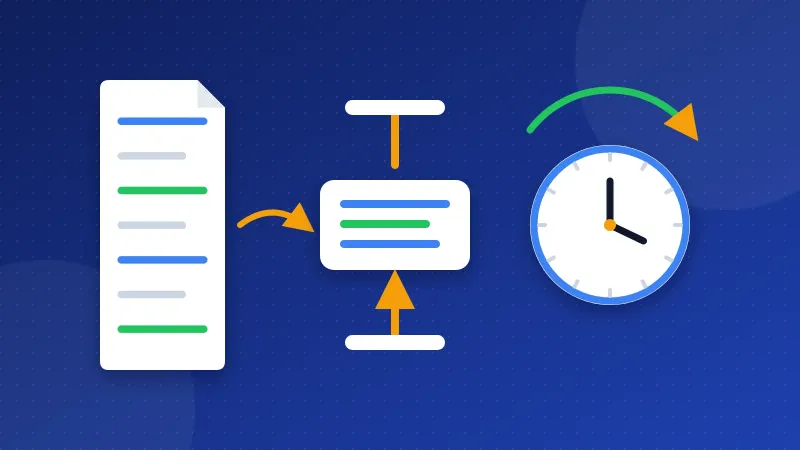
Gzip is a way to pack text files before the server sends them. HTML, CSS and JavaScript shrink a lot, often by 70 to 90 percent. The browser unpacks them in a blink. Brotli is a newer method that packs a little tighter, and browsers that support it ask for it first.
Browser caching works on the visitor's side. The server adds a note to each file that says how long the browser may keep it. On the next page, the browser takes the logo, the stylesheet and the scripts from its own storage instead of downloading them again. Pages feel faster, and your server does less work.
Both show up in speed tools like PageSpeed Insights, and our Website SEO Checkup has a check for each one.
What does the code contain?
The Apache version has four small blocks. Each one sits inside an <IfModule> line, so it only runs when the server has that module. A missing module does not cause an error.
- mod_mime makes sure newer files such as WebP, AVIF and WOFF2 get the right file type, so the other rules can find them.
- mod_brotli (if you tick it) and mod_deflate compress text, CSS, JavaScript, SVG and some fonts.
- mod_expires sets how long each file type may stay in the browser. It writes both the Expires date and Cache-Control max-age.
- mod_headers sets a clear Cache-Control line for files, so a weaker value from another rule does not win.
The Nginx version uses gzip on, a gzip_types list and location blocks with expires. Nginx always compresses HTML once gzip is on, so the tool leaves text/html out of the list.
How long should each file be cached?
The right time depends on how the file address changes when you edit it.
| File type | Good cache time | Why |
|---|---|---|
| HTML pages | No cache or up to 1 hour | You edit pages often, and visitors should see the new text |
| CSS and JavaScript | 1 year if versioned, else 1 week | A new version number means a new address |
| Images | 1 month to 1 year | Most images never change after upload |
| Fonts | 1 year | Font files almost never change |
"Versioned" means the address changes when the file changes, like style.css?ver=6.4 or app.3f9a.js. WordPress and most themes add these version numbers for you. A browser that keeps style.css?ver=6.4 for a year is fine, because your next update loads ?ver=6.5, which is a new file.
HTML has no version in its address, so a long cache there means visitors may see an old page after you change it. That is why the tool sets HTML to "no cache" by default. No-cache does not mean "never store". It means the browser must ask the server if the page changed before it uses its copy.
Why are images not compressed?
JPEG, PNG, GIF, WebP, AVIF and WOFF2 files are already compressed inside. Gzip would spend server time and make them no smaller. The tool only compresses SVG and icon files among images, because those are text inside. To make photos smaller, convert them with the image to WebP converter instead.
How to add the .htaccess gzip and caching code
- Back up your .htaccess file. It sits in public_html. Turn on "show hidden files" in the file manager to see it.
- Paste the code near the top, above "# BEGIN WordPress" or other rewrite rules, and save.
- Reload your site in a private window to make sure it still opens.
- Check a page and a CSS file. Press F12, open Network, reload, click the file and copy the Response Headers into the checker.
If your host uses LiteSpeed, the same code works. For Brotli on LiteSpeed, look for the setting in your hosting panel, since the server handles it itself. On Nginx you need access to the server config. If you are on managed hosting, send the code to support and ask them to add it.
Using the header checker
Paste the headers of one file, and the checker reads three lines for you:
- Content-Encoding should say gzip or br for text files. For JPEG or WebP files, no compression is normal.
- Vary: Accept-Encoding should be there when a file is compressed, so shared caches do not send packed files to a browser that cannot read them.
- Cache-Control should show a long max-age for CSS, JavaScript and images (at least one day, ideally one year) and no-cache or a short time for HTML.
You can also use the command line: curl -sI -H "Accept-Encoding: gzip, br" https://example.com/style.css prints the same headers.
Common mistakes
- Caching HTML for a month. Visitors keep seeing the old homepage. Keep HTML short.
- Using "immutable" on files without versions. The browser will not recheck them even on reload. Only tick it when every file name changes with each edit.
- Testing while logged in. Many caching plugins skip logged-in users. Test in a private window.
- Two caching plugins at once. They fight over the same headers. Keep one.
Want the background in plain words? Read our guide on how to enable gzip and browser caching. While .htaccess is open, you can also add HTTPS and frame protection with the security headers generator. A good .htaccess gzip and caching setup takes five minutes, and every visitor gets smaller files from then on.
Frequently asked questions
How do I know if gzip is already on?
Open your page, press F12, choose Network and reload. Click the first request and look for content-encoding in the Response Headers. If it says gzip or br, compression is on already.
Will long caching show old CSS after I change my theme?
Not when the file address has a version, like ?ver=2. Most themes change that number on update. If you edit a CSS file by hand without a version, pick one week, or add a version number yourself.
Can this code break my site?
It is low risk, since each block only runs when its module exists. If your site shows a 500 error after saving, remove the code from .htaccess, then ask your host which modules are on.