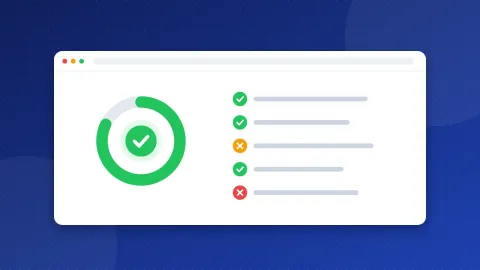
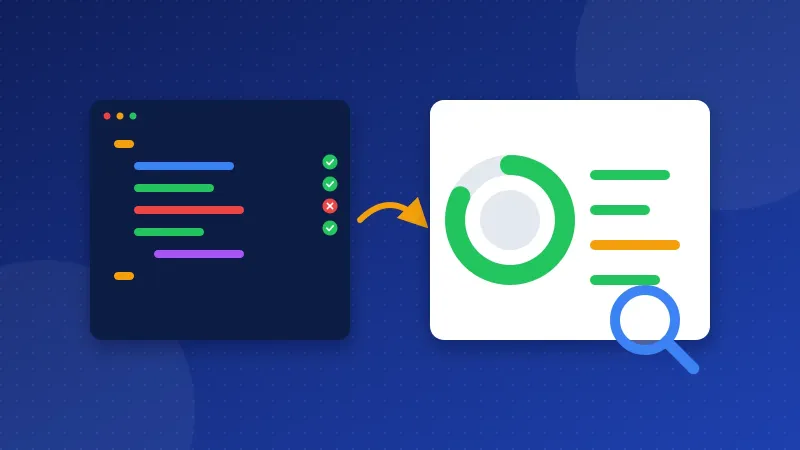
To check schema markup, paste a page's source or its JSON-LD into the Schema Checker. It finds every structured data block, reads the Article, BreadcrumbList, Organization and FAQPage items, and gives each one a score from 0 to 100 with a line for every field Google asks for. Missing fields get an "Add" button, and the tool hands you a corrected JSON-LD block to copy.
What schema markup does
Schema markup, or structured data, is a small block of code that says in a fixed vocabulary what a page is: an article written by this person on this date, a business with this logo, a list of questions and answers. Google reads it to understand the page and, for some types, to show a richer result such as breadcrumbs instead of a plain URL.
Google reads three formats: JSON-LD, Microdata and RDFa. It recommends JSON-LD, because it sits in one <script type="application/ld+json"> block and does not get mixed into your HTML. This checker reads JSON-LD only.
How to check schema markup with this tool
- Get the code. Open your page, press Ctrl+U (or Cmd+Option+U on a Mac) to see the source, select all and copy it. You can also paste only the JSON-LD.
- Paste it in the box. The score appears at once. Each item shows its type and its own score.
- Read the lines. A green tick means the field is there and looks right. An orange mark means it is missing but only recommended, or present with a problem. A red cross means a required field is missing.
- Click "Add" next to a missing field. The tool fills in a value from the page where it can, such as the title or the og:image, and a [placeholder] where it cannot.
- Copy the corrected block. Replace every text in [brackets] with your real details and put the block in the page's head.
With PRO you can type a URL instead of pasting the source, or enter a sitemap and check up to 50 pages in one go, with a CSV of the results. The page is read as the server sends it, so schema that a plugin adds later with JavaScript is not seen.
The fields this checker looks for
| Type | Required by Google | Recommended |
|---|---|---|
| Article, BlogPosting, NewsArticle | None | headline, image, datePublished, dateModified, author with a name |
| BreadcrumbList | itemListElement, with position, name and item for each step | At least two steps |
| Organization, LocalBusiness | None | name, url, logo, sameAs, description, contact details |
| FAQPage | mainEntity, with a name and an acceptedAnswer text for each Question | – |
The score weighs a required field three times as much as a recommended one. An item with a missing required field never scores above 40, because Google will not use it for a rich result. The tool also checks details that often go wrong: images and logos need a full https:// address, dates need the ISO 8601 format (2026-03-05T08:00:00+07:00), and the author should be a Person or Organization object with a name, not plain text.
Be honest with yourself about FAQ schema
Since August 2023, Google shows FAQ rich results only for well-known, authoritative government and health websites. For a blog, a shop or a business site, FAQPage markup is still valid and still describes the page, but you should not expect the drop-down questions in Google any more. The checker says so next to every FAQPage item, so you can decide whether it is worth keeping.
The same caution applies to every type. Google's documentation says valid structured data makes a page eligible for a rich result, not certain to get one. Google decides based on the search, the device and the quality of the page.
Common schema mistakes
- Markup that does not match the page. An Article headline that is not on the page, or reviews that visitors cannot see, break Google's structured data rules and can lead to a manual action.
- Two plugins writing schema. A theme and an SEO plugin may both add an Organization or Article block, with different values. Keep one source.
- Relative image URLs.
/images/cover.jpgworks in HTML but not in schema. Use the full address. - Broken JSON. One missing comma or a curly quote copied from a word processor makes the whole block invalid. The checker shows the parse error and where it happened.
- Dates written for people. "March 5, 2026" is not a valid schema date. Write
2026-03-05.
How this differs from Google's own tools
Google's Rich Results Test shows whether a live page qualifies for the rich results Google supports, after rendering JavaScript. The Schema Markup Validator at schema.org checks the whole schema.org vocabulary, not only what Google uses. This Schema Checker sits before both: it explains each field in plain words, lets you add what is missing, and checks many pages from a sitemap at once. Run the final page through the Rich Results Test before you rely on it.
Bloghints CMS adds structured data such as BreadcrumbList and Organization to its pages automatically. If you build a page by hand, start with the Schema Markup Generator, then check schema markup here before you publish.
Frequently asked questions
Does schema markup help my rankings?
Not directly. Google says structured data helps it understand a page and can make it eligible for rich results, which may earn more clicks. It is not a ranking boost on its own.
Why does my page score 100 here but show no rich result in Google?
A complete and valid markup only makes a page eligible. Google chooses when to show a rich result, and some types, such as FAQ, are shown only for certain sites.
Can I check schema that a WordPress plugin adds?
Yes, if the plugin writes the JSON-LD into the HTML, which most SEO plugins do. Paste the page source or use the PRO URL check. Markup added only by JavaScript after the page loads will not be found.