About Proton Mail
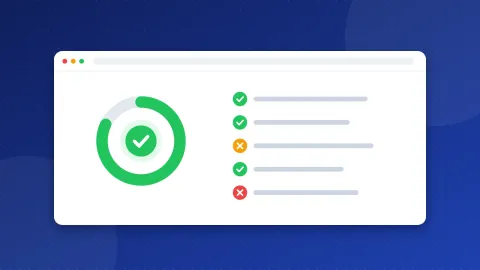
Proton Mail custom domain setup needs a paid plan: the free plan does not include custom domains. Once you upgrade, you add your domain in Proton's settings, prove you own it with a TXT record, then add MX, SPF, DKIM and DMARC records at your DNS provider. Proton checks each record and shows a green tick when it works.
What is Proton Mail and who is it for?
Proton Mail is an email service from Proton, a company based in Switzerland. Its main selling point is privacy. Proton says it uses end-to-end and zero-access encryption, which means it cannot read the mail stored in your inbox. You can use it on the web, on iPhone and Android, and in desktop apps.
It fits a blogger, a writer, a coach or a small business that handles private messages and wants a provider built around privacy. It also suits anyone who wants a free private address before they decide to pay.
Look elsewhere if your main need is an office suite with shared documents, or if you want a free inbox at your own domain. Proton keeps custom domains for paid plans.
Free plan or paid: what does the free plan leave out?
Proton has a free plan, and Proton says it will always offer one. The free plan uses the same encryption as the paid plans. Its pricing page lists what the free plan leaves out:
- custom email domains
- extra email addresses
- support for mail apps such as Outlook or Thunderbird (through Proton Mail Bridge)
- auto-reply, catch-all and automatic forwarding
- more storage, more folders and labels, and priority support
The free plan also has a daily message cap. The paid plans remove it. Check the official pricing page for the current plans.
How does Proton Mail custom domain setup work?
A custom domain is your own name after the @, such as hello@yourshop.com. DNS is the address book of that domain. You change it at the company that runs your DNS, which is often your registrar or web host. Proton's guide follows these steps:
- Upgrade to a paid plan. On business plans, you first create an organization.
- Go to Settings, then Domain names, and choose Add domain.
- Add the TXT record Proton shows you. It starts with protonmail-verification and proves you own the domain.
- Create your users and addresses before you change the MX records, so you do not lose mail during the move.
- Add both MX records from Proton. Remove the old MX records or give Proton's records the lowest priority number.
- Add one SPF record that allows Proton to send for your domain. Never keep two SPF records. Learn more in what an SPF record is.
- Add all three DKIM records and the DMARC record from Proton's panel.
Proton generates the values for each domain, so copy them from your own panel. Proton suggests a short TTL, which is the time other servers keep the old record. Changes can take from minutes to hours. You can check your records with the free DNS & Email Checker.
What are the SMTP and IMAP settings?
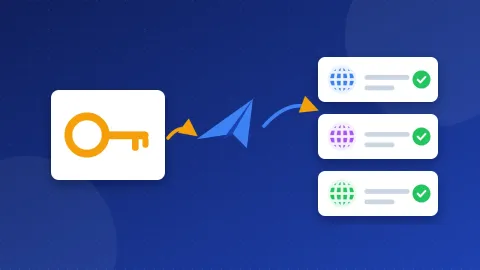
Proton works a bit differently. Its SMTP service lets a website, a CRM or a printer send mail from your Proton address. It is send-only, and it only works on paid plans with a custom domain address. Your normal Proton password will not work there. You make an SMTP token instead.
| Setting | Value |
|---|---|
| SMTP host | smtp.protonmail.ch |
| SMTP port | 587 with STARTTLS |
| Username | your custom domain address |
| Password | an SMTP token from Settings, IMAP/SMTP |
| Reading mail in apps | Proton Mail Bridge (paid plans) |
Proton shows the token only once, so save it right away. Make one token for each address and each app. Then one token can be removed without breaking the rest. See the Proton Mail SMTP settings page for the full list. When you are ready, test the Proton Mail SMTP server in the free SMTP Tester.
How do you use it with WordPress or a contact form?
- Make sure your custom domain shows green ticks in Proton.
- Create an SMTP token for the address the site will send from, such as forms@yourdomain.com.
- Install WP Mail SMTP or FluentSMTP and choose "Other SMTP".
- Enter smtp.protonmail.ch, port 587, STARTTLS, your custom domain address and the token.
- Set the "From" address to that same address and send a test email.
One honest limit: mail sent through Proton's SMTP service is not end-to-end encrypted. It lands in your Sent folder and still uses your SPF, DKIM and DMARC records. The same goes for normal mail to people outside Proton. Proton says mail to a Gmail address is protected in transit but is not end-to-end encrypted by default. You can send a password-protected email when it really matters.
What are the downsides?
- No custom domain for free. You need a paid plan for your own domain.
- Extra step for mail apps. Outlook or Thunderbird need Proton Mail Bridge, which is paid only.
- Limits of encryption. Subject lines are not end-to-end encrypted, and neither is mail to other providers by default.
- Tokens to manage. Each sending app needs its own SMTP token.
What are the alternatives?
- Zoho Mail: fits better if you want your own domain on a free plan.
- Namecheap Private Email: a simple paid inbox with normal SMTP and IMAP, with no bridge app needed.
- Google Workspace: better when your team needs shared files and calendars more than strong privacy.
In short, Proton Mail custom domain setup is a paid-plan task: add the TXT, MX, SPF, DKIM and DMARC records Proton gives you, wait for the green ticks, then create an SMTP token if your site needs to send mail. Test it once before you rely on it.
Frequently asked questions
Can I use a custom domain with the Proton Mail free plan?
No. Proton's pricing page shows custom domains only on paid plans, such as Mail Plus and up. The free plan gives you a Proton address. You can upgrade later and add your domain then.
Why does my Proton Mail password not work for SMTP?
Proton's SMTP service does not accept your login or mailbox password. You need an SMTP token, which you make under Settings, IMAP/SMTP. The token only works for a custom domain address on a paid plan.
Is email from WordPress through Proton SMTP end-to-end encrypted?
No. Proton says mail sent through its SMTP service is not end-to-end encrypted. It is still sent over an encrypted connection and checked against your SPF, DKIM and DMARC records. A copy appears in your Sent folder.