The Namecheap Private Email SMTP settings are: server mail.privateemail.com, port 465 with SSL or port 587 with STARTTLS, and your full email address as the username. The password is your mailbox password or an application password. The same server name handles incoming mail on IMAP port 993.
| Setting | Value | Notes |
|---|---|---|
| SMTP server | mail.privateemail.com | Namecheap says not to change it |
| Port and security | 465 with SSL | Encrypted from the start |
| Other port | 587 with TLS/STARTTLS | Also supported |
| Username | Your full email address | For example you@yourdomain.com |
| Password | Mailbox password or application password | An app password is safer for plugins |
| Incoming IMAP | mail.privateemail.com, port 993 SSL or 143 STARTTLS | Keeps all devices in sync |
| Incoming POP3 | mail.privateemail.com, port 995, SSL | Downloads mail to one device |
You can test these Namecheap Private Email settings in the free SMTP Tester in a few seconds. It checks the connection and the security certificate without your password. If you enter your login, it sends one test message to prove the mailbox can send.
What do SMTP, IMAP and the port numbers mean?
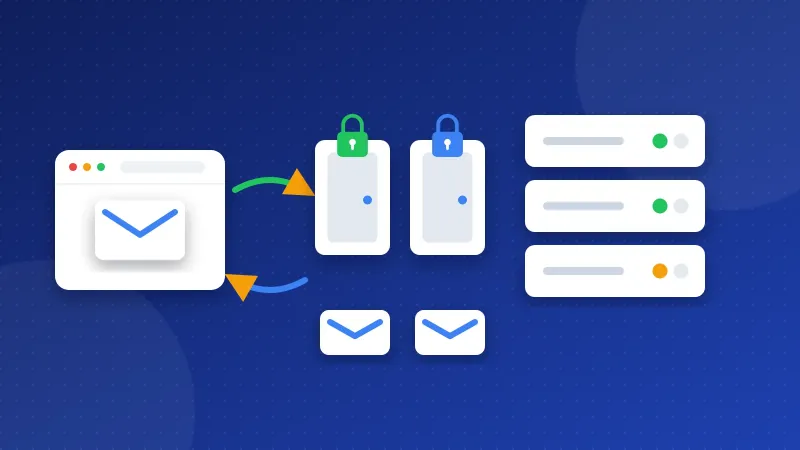
SMTP is the way email gets sent. Your website or email app passes each message to an SMTP server, and the server delivers it. IMAP lets you read mail that stays on the server, so your phone and laptop match. POP downloads mail to one device instead.
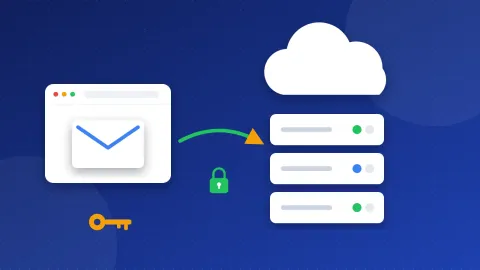
A port is a numbered door on the server. SSL/TLS on port 465 locks the line from the first second. STARTTLS on port 587 opens a plain line and then turns on the lock. Namecheap's mail servers only accept encrypted connections, so you must pick one of the two.
What do I need before I start?
- An active Private Email mailbox on your domain, set up in your Namecheap account.
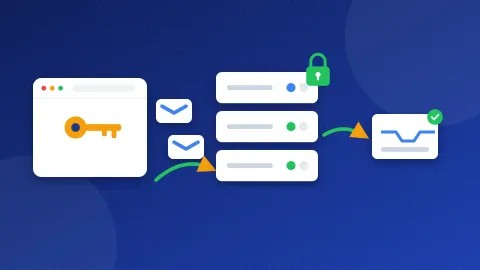
- The right password. Namecheap accepts the mailbox's master password or an application password. An application password is a separate password made for one app. If a plugin leaks it, you can delete it without changing your main password.
- Login for outgoing mail switched on. Namecheap requires outgoing server login. It also says to switch off SPA (Secure Password Authentication), an old Outlook option.
- Your domain's mail records in place. If you just moved the domain, check how to point a domain to hosting first.
How do I make an application password?
Sign in to webmail at privateemail.com and open Settings. Choose Launch Security Center and open the App passwords tab. Click Create new password, give it a name such as "WordPress", and confirm with your master password. Copy the new password at once, because Namecheap shows it only one time.
How do I use the Namecheap Private Email SMTP settings in WordPress?
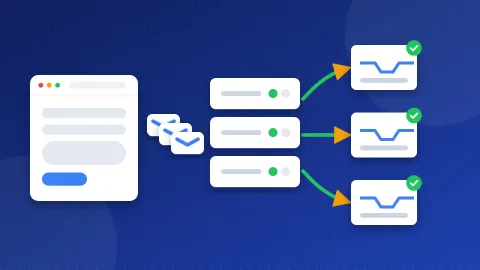
WordPress sends mail through PHP by default, and many inboxes reject that mail or hide it. A free SMTP plugin sends through your real mailbox instead. Here is how it works in WP Mail SMTP:
- Install and activate WP Mail SMTP, then open its settings.
- Set From Email to your Private Email address. Tick Force From Email.
- Choose Other SMTP as the mailer.
- Enter
mail.privateemail.comas the SMTP Host. - Pick SSL and port 465. If that fails, pick TLS and port 587.
- Turn on Authentication. Enter your full email address and your application password.
- Save the settings and send a test email from the plugin's Tools tab.
FluentSMTP and Post SMTP ask for the same values. Never pick "None" for encryption here, because Namecheap refuses connections without it.
How do I add the mailbox to an email app or phone?
In Outlook, Thunderbird, Apple Mail or a phone app, add a new account and pick IMAP. Use mail.privateemail.com for both incoming and outgoing mail. Set incoming to port 993 with SSL and outgoing to port 465 with SSL. Your username is the full email address in both places. Turn on "my outgoing server requires authentication" and make sure SPA is off.
What do common SMTP errors mean?
- 535 authentication failed: the username or password is wrong. Use the full address. If you made an application password, copy it again without spaces.
- 530 must issue a STARTTLS command first: you picked port 587 but left encryption off. Choose TLS for 587 or SSL for 465.
- Timeout or "could not connect": your web host or network blocks the port. Try the other port. If both fail, ask your web host which outgoing ports are open.
- 550 or 553 sender not allowed: the From address is not the mailbox you logged in with. Make them match.
- Login keeps failing in Outlook: SPA is switched on. Turn it off in the account's advanced settings.
Why do my emails land in spam?
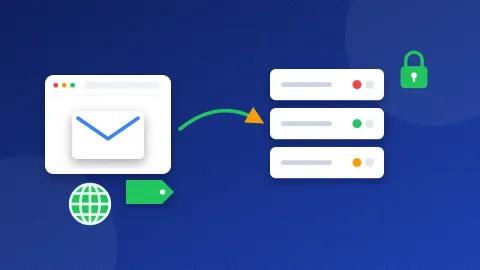
The right SMTP settings get your mail out. Your domain records decide whether inboxes trust it. Three DNS records do most of the work. SPF lists the servers that may send for your domain. DKIM adds a digital signature to each message. DMARC tells inboxes what to do when those checks fail.
Start with our guide what is an SPF record. Then run your domain through the DNS and Email Checker to see which records are missing.
The Namecheap Private Email SMTP settings are short: mail.privateemail.com, port 465 with SSL or 587 with STARTTLS, and your full email address. Use an application password for plugins, keep encryption on, and run a quick check in the SMTP Tester before you rely on your forms. For other providers, open our SMTP settings list.
Frequently asked questions
Can I use Namecheap Private Email without SSL or TLS?
No. Namecheap says its mail servers only support encrypted connections. Pick SSL with port 465 or STARTTLS with port 587. Plain connections on other ports will fail.
Should I use an application password for Namecheap Private Email?
It is a good idea for websites and apps. Namecheap accepts either the master password or an application password. An application password lets you cut off one app without changing your main password.
Is the server the same for incoming and outgoing mail?
Yes. Namecheap uses mail.privateemail.com for IMAP, POP3 and SMTP. Only the ports change: 993 or 143 for IMAP, 995 for POP3, and 465 or 587 for SMTP.