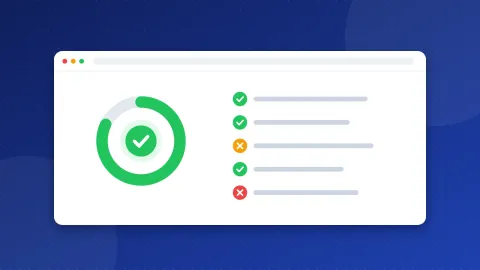
To test an SMTP server, type its name, pick the port and the encryption, and press Test connection. The SMTP Tester connects from Bloghints' server, reads the greeting, turns on encryption and checks the certificate, without asking for a password. To check your login too, open "Send a test email": the tester signs in and sends one short message to an address you choose.
What is SMTP, and why test it?
SMTP (Simple Mail Transfer Protocol) is the language programs use to send email. When WordPress sends a password reset, when a contact form mails you a message, or when Outlook sends what you wrote, the program talks SMTP to a mail server.
That conversation needs four things to be right: the server name, the port, the type of encryption and the login. If one of them is wrong, the program usually shows a vague error such as "could not connect" or "SMTP Error: Could not authenticate". The tester splits the problem into steps, so you can see which part fails.
How to test an SMTP server step by step
- Pick your provider in the list, or choose "Other" and type the SMTP server name from your provider's help page, for example
smtp.gmail.com. - Pick the port and encryption. Use 587 with STARTTLS or 465 with SSL/TLS, as your provider says.
- Press Test connection. This is level 1. It needs no password and shows whether the server answers, which encryption it uses and whether its certificate is valid.
- Open "Send a test email" if the connection works. Enter the username and password (or app password), the address that should get the message, and tick that the account is yours.
- Check the inbox of that address, and its spam folder, after a minute or two.
The results show every step with a ✓, ! or ✗, and a plain fix for each problem. You can also open the full conversation with the server. Passwords are always hidden in it.
Which port should I use: 587, 465 or 2525?
A port is like a door number on the mail server. Email apps and websites hand their mail to the server through one of these doors:
| Port | Encryption | When to use it |
|---|---|---|
| 587 | STARTTLS | The usual choice for apps and WordPress. The connection starts plain and switches to encryption before the login. |
| 465 | SSL/TLS | Encryption starts at once. Use it when your provider lists it, or when port 587 is blocked. |
| 2525 | STARTTLS | A backup port that some sending services offer, for networks that block the other two. |
| 25 | Varies | For mail servers talking to each other. Most hosts block it for websites, so the tester does not use it. |
The email standard RFC 8314 says both 587 with STARTTLS and 465 with encryption from the start are fine when they are set up correctly. The most common mistake is mixing them up: port 465 with STARTTLS, or port 587 with SSL/TLS. The tester spots both and tells you what to switch.
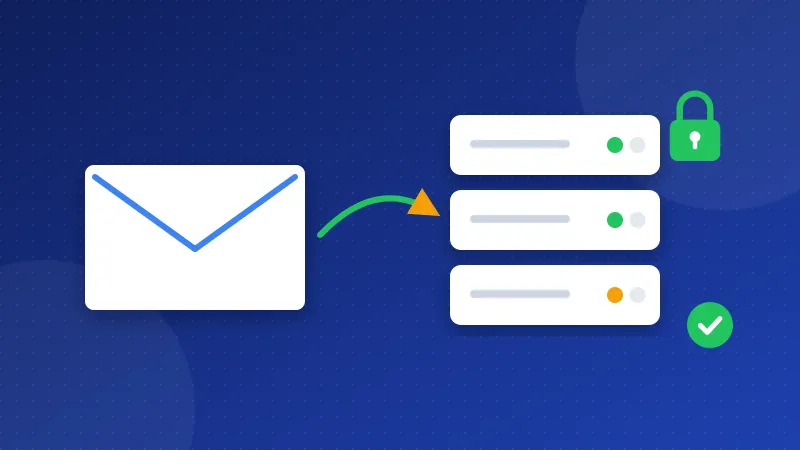
What the results mean
- Could not connect, timeout: nothing answered on that port. The server name may be wrong, the server may not use that port, or a firewall blocks it. Try the other port.
- Encryption failed: usually the wrong encryption for the port, or a server that only knows old TLS versions.
- Certificate warning: the server's certificate is expired, self-signed or made for another name. On shared hosting, the right server name is often the host's server name, not mail.yourdomain.com.
- Login failed (535): the username or password is wrong. Gmail, Yahoo and iCloud want an app password, a separate password you create in the account's security settings.
- Sender not accepted (550 or 553): the From address is not the account you logged in with, or not a sender you verified with the provider.
Is it safe to type my password here?
The connection test needs no password at all. For the login test, the tester sends your password only to the mail server you typed, and only after the connection is encrypted. If the certificate is not trusted, it stops and asks you first. The password is not stored, not written to any log and not shown in the result.
To stop misuse, the message text is fixed: you cannot change the subject or the body, and it goes to one address only. Each visitor can send a few test emails per hour, and after three failed logins sending pauses for a while. For extra peace of mind, use an app password and delete it after the test.
After the test: why mail still lands in spam
A working SMTP login only proves that your provider accepts your mail. Whether Gmail or Outlook puts it in the inbox also depends on your domain's DNS records: SPF, DKIM and DMARC. Check them with the free DNS & Email Checker, and read what an SPF record is if the word is new to you.
Looking for the exact settings of your provider? The list of SMTP settings for email providers has the server, port and login for Gmail, Outlook, Zoho, cPanel hosting and more, each with a one-click link back to this tester.
Before you set up a new contact form, plugin or email app, use this page to test an SMTP server with the settings you plan to use. It takes a few seconds and tells you whether the problem is the server, the port, the encryption or the login.
Frequently asked questions
Can I test an SMTP server without a password?
Yes. The connection test checks that the server answers, which encryption it uses, its certificate and the login methods it offers. You only need a password to check the login and send a test email.
Why does the tester say "timeout" when my settings are right?
A timeout means no answer came on that port within 8 seconds. The server may use a different port, or a firewall may block it. Try 587 and 465 in turn. If your own website also times out, ask your web host whether it blocks outgoing SMTP ports.
Does the test email count against my sending limit?
Yes, it is a real message sent through your account, so it counts like any other email. The tester sends only one message per test, and only to the address you type.